How To Change Product Layout Style?
Restrofood offers 6 different kinds of product layouts to showcase your products. You can set it globally from the settings option or a specific Elementor widget. Follow the screenshots to set the settings.
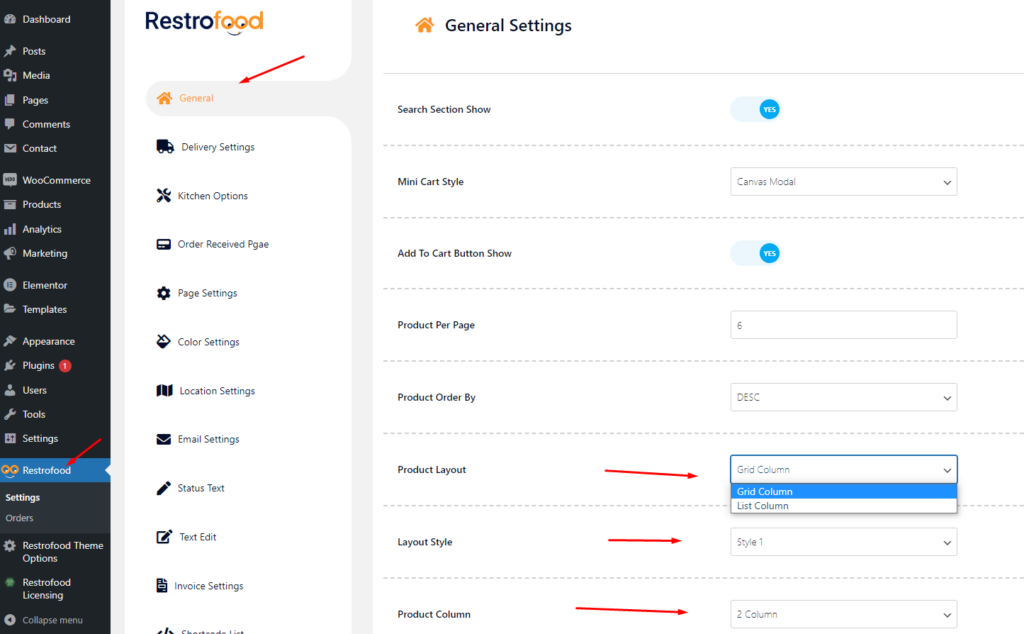


Restrofood offers 6 different kinds of product layouts to showcase your products. You can set it globally from the settings option or a specific Elementor widget. Follow the screenshots to set the settings.
Upload the xml file. Note: You should upload restrofood product xml first then restrofood media xml file
Item visibility is divided into several mealtimes- Breakfast, Lunch, Dinner, Snack, etc. The item which is being set for breakfast will not be visible as lunch, dinner, or snacks. The same goes for other mealtimes. Have a look at the below-attached screenshots. You’ll get a complete overview.
After Cooking Complete the order need to assign delivery boy to order delivery. There has a select option to assign delivery boy in the branch and kitchen manager page order view popup. Follow the screenshot below.
To work time and date properly with your time you need to settings restrofood plugin timezone from restrofood settings and WP admin settings -> general Restrofood settings option: WP admin settings option:
Restrofood provides 3 unique cart style options. You can choose the one that you prefer most. You can set it globally from the settings option or a specific Elementor widget. Follow the screenshots to set the settings.
Invoice type settings option: Normal Printer layout: Thermal/Receipt Printer layout:


