How To Change Cart Style?
Restrofood provides 3 unique cart style options. You can choose the one that you prefer most. You can set it globally from the settings option or a specific Elementor widget. Follow the screenshots to set the settings.
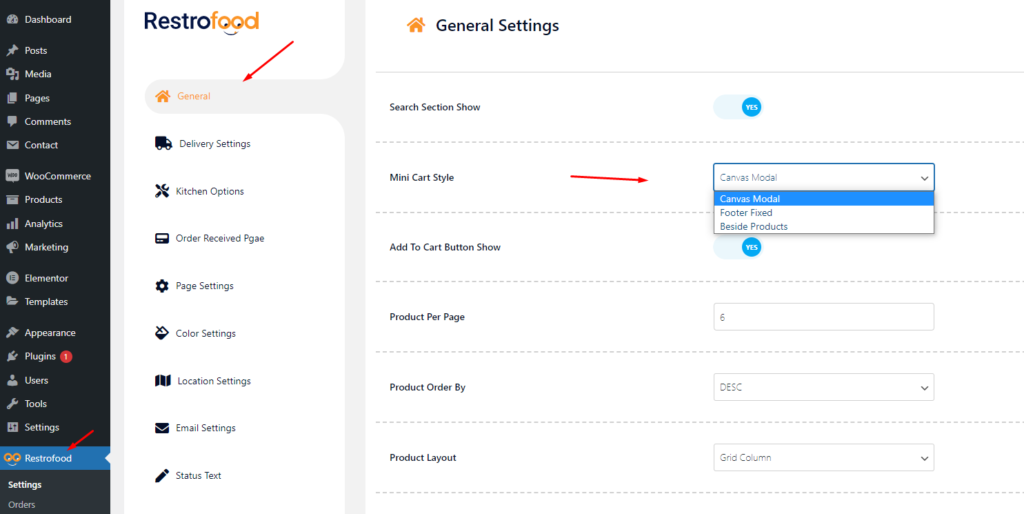
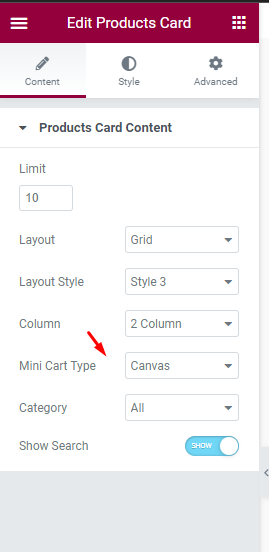

Restrofood provides 3 unique cart style options. You can choose the one that you prefer most. You can set it globally from the settings option or a specific Elementor widget. Follow the screenshots to set the settings.
RestroFood provides different time and multiple holiday set options for different branches. Here is the screenshot of how and from where the Delivery/Pickup time and holy day set in the branch admin.
RestroFood plugin provides some default pages after installing the plugin. See the pages list below: 1. Admin ( admin page to login branch manager, kitchen manager, and delivery boy )2. Branch Manager ( Branch Manager page to manage branch order )3. Kitchen Manager ( KitchenManager page to manage branch order in the kitchen )4. RestroFood…
Download The copy of the plugin as a zip file, you can manually upload it and install it through the Plugins admin screen. Navigate to Plugins > Add New. Click the Upload Plugin button at the top of the screen. Select the zip file from your local filesystem. Click the Install Now button. When the installation is complete, you’ll see…
Set how much order you want to received per time slot. If you don’t set any number of this option customers can order unlimited every time slot. If time slot order limit is over customer will see the information like below image. If the customer selects the time, which time slot already crosses the order…
Set list type and min/mix required option. If you don’t set min or max required number this items are not required for the product to add to cart.


