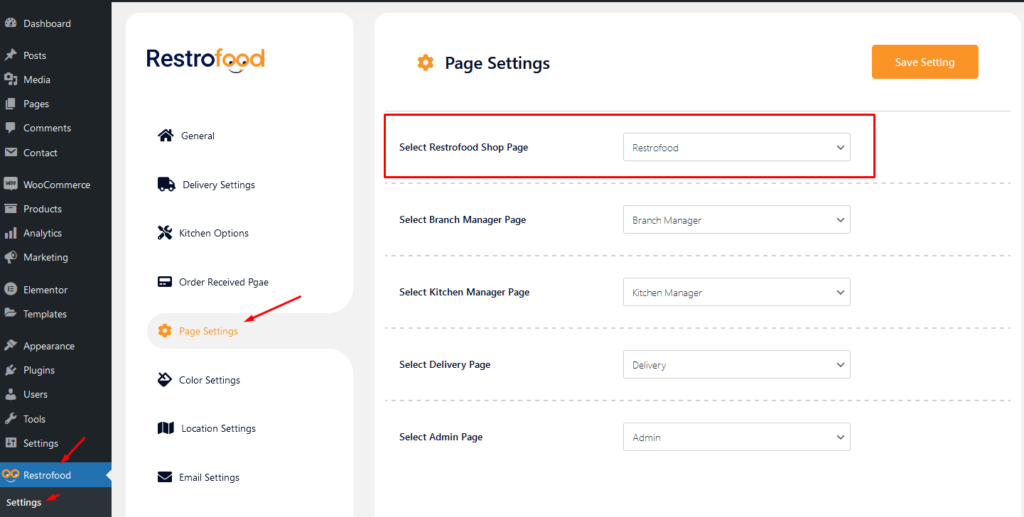
How to set and change RestroFood Pages?

RestroFood WooCommerce quick order branch management system depends on WooCommerce plugin. So you have must be installed WooCommerce Plugin before use RestroFood plugin.
To create product attributes follow the screenshot: Set Product Variations:
RestroFood plugin provides some default pages after installing the plugin. See the pages list below: 1. Admin ( admin page to login branch manager, kitchen manager, and delivery boy )2. Branch Manager ( Branch Manager page to manage branch order )3. Kitchen Manager ( KitchenManager page to manage branch order in the kitchen )4. RestroFood…
The main admin can see and controls all branch orders from Branch order manage page. This page can access only main admin user from dashboard. There has so many options in this page. Following the options list below : Order filter by date and branch Show statistic on Total Order, Total Completed Order, Total Cancel…
Follow the screenshot to get invoice settings options.
Download The copy of the plugin as a zip file, you can manually upload it and install it through the Plugins admin screen. Navigate to Plugins > Add New. Click the Upload Plugin button at the top of the screen. Select the zip file from your local filesystem. Click the Install Now button. When the installation is complete, you’ll see…


