How to install RestroFood Theme?
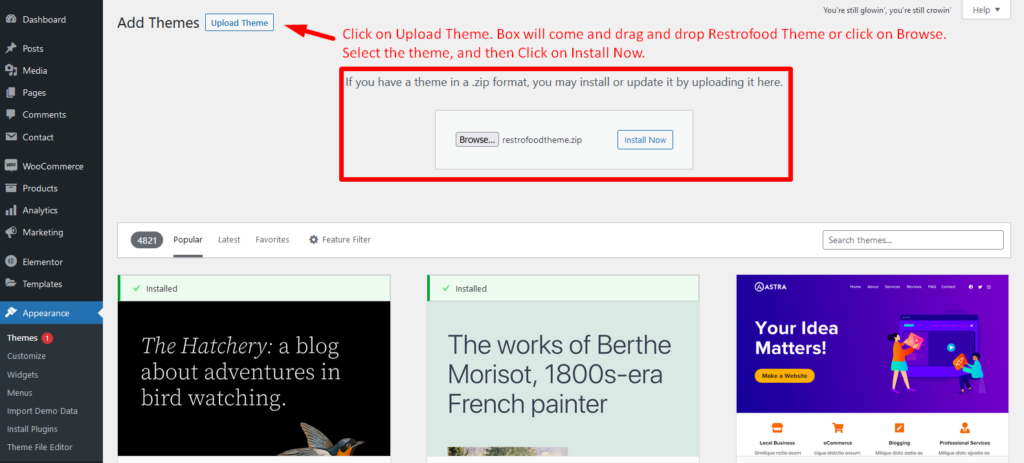
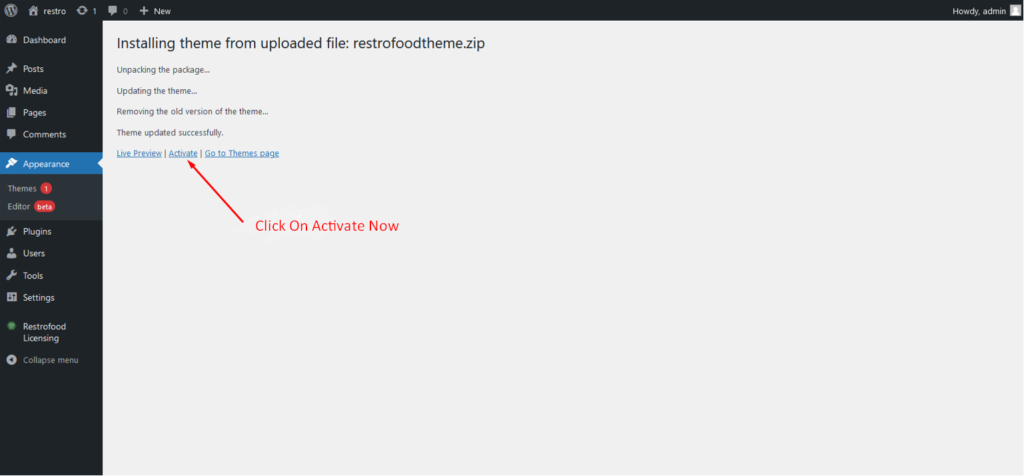
Go to Appearance -> Themes -> Add New -> Upload Theme -> Browse and Install Now
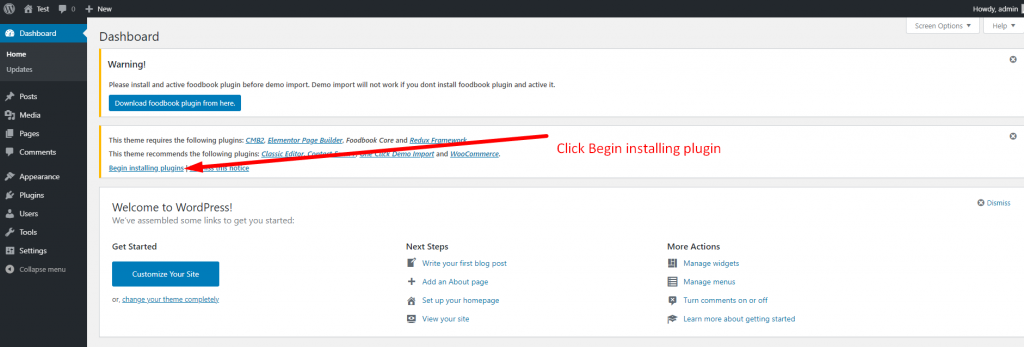
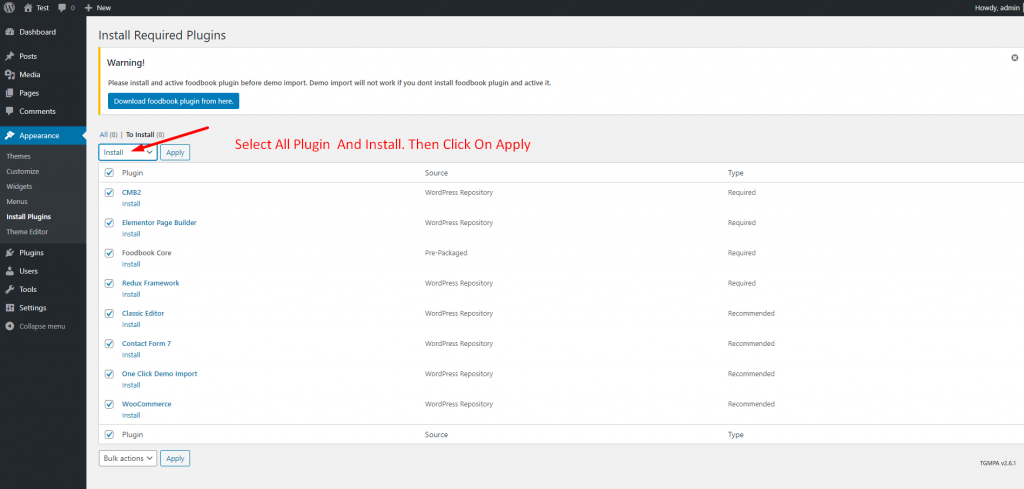
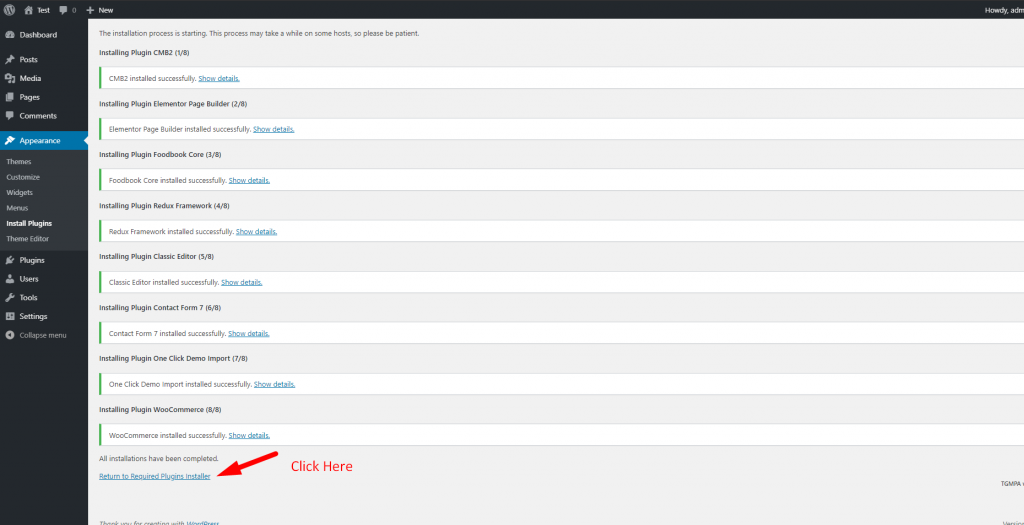
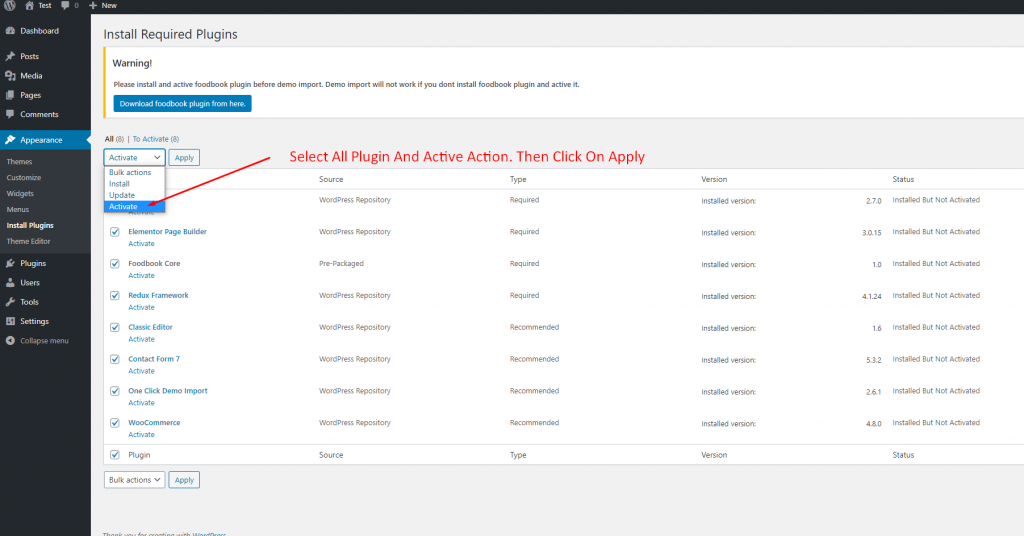
You will need to install some required plugins to work the theme properly. Follow the below screenshot.

Go to Appearance -> Themes -> Add New -> Upload Theme -> Browse and Install Now
You will need to install some required plugins to work the theme properly. Follow the below screenshot.
You will need to create user to access the branch manager, kitchen manager, and delivery boy. Restrofood provides 3 different user roles for different manager. After installing the plugin you will find 3 new user roles in the user role option. The roles are Branch Manager, Kitchen Manager, and Delivery Boy. Follow the screenshot to…
Follow the screenshot to understand how to work delivery ability checker by zip location. For Single Branch: Settings Options:
Restrofood provide invoice logo, shop name, address and footer text add option.
You need to check system status before WordPress Plugin installation. WordPress This section displays the following information about your WordPress setup: Home URL: The URL of the site’s homepage. Site URL: The root URL of the site. Version: The version of WordPress installed on your site. We recommend always use the latest WordPress version available in WordPress.org. Multisite: Whether or…
To create google API key visit the link https://console.cloud.google.com/ and login with your google access. After that, you need to create a project for API credentials with some Library permission. Follow the screenshot below: Library Support: Key Restrictions:
Restrofood Theme provides a one-click demo import system. So you could import demo data like our demo site easily. Before installing demo data you should install all required plugins and active restrofood plugin license. Before import demo data make sure you have activated the restrofood license: Import demo data:


